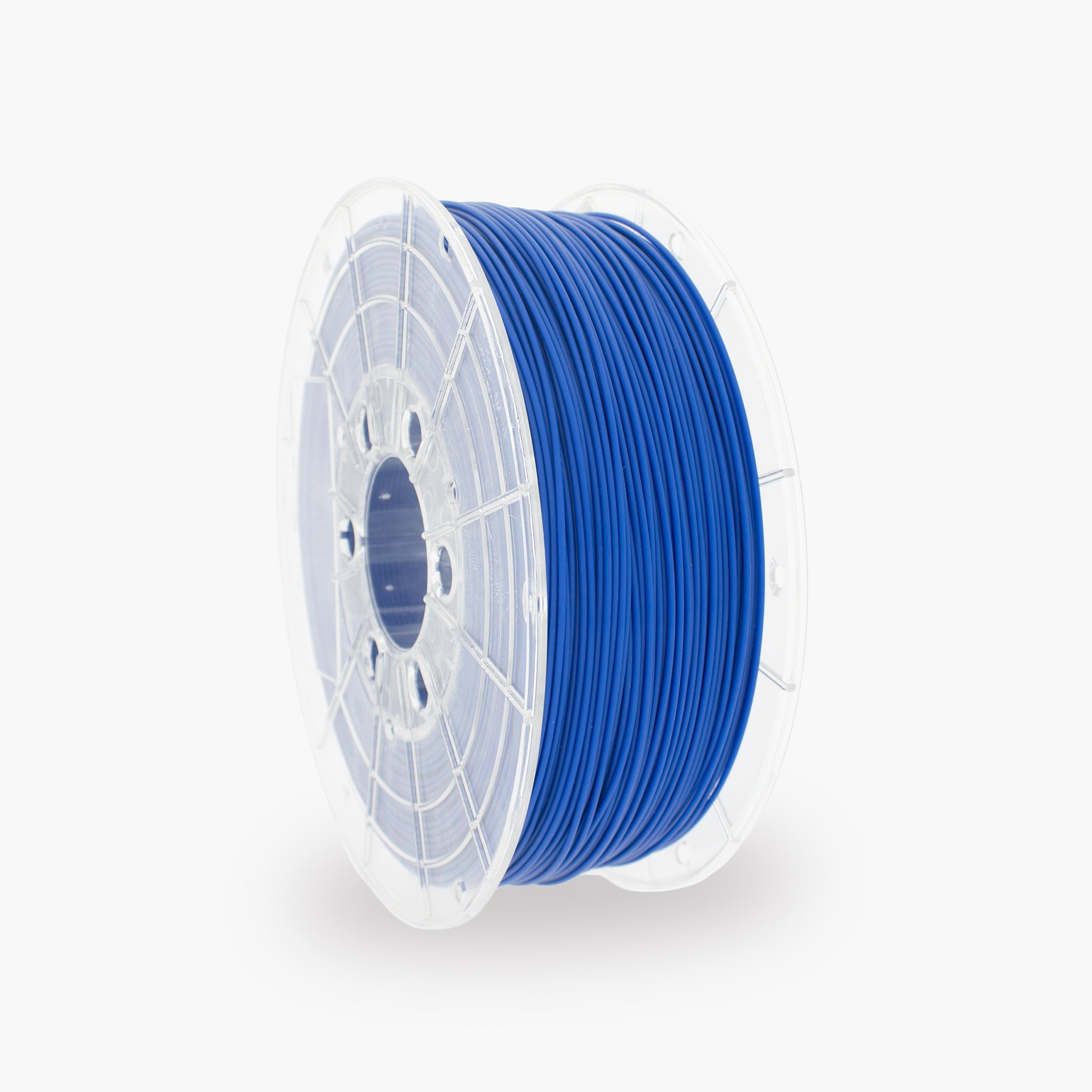

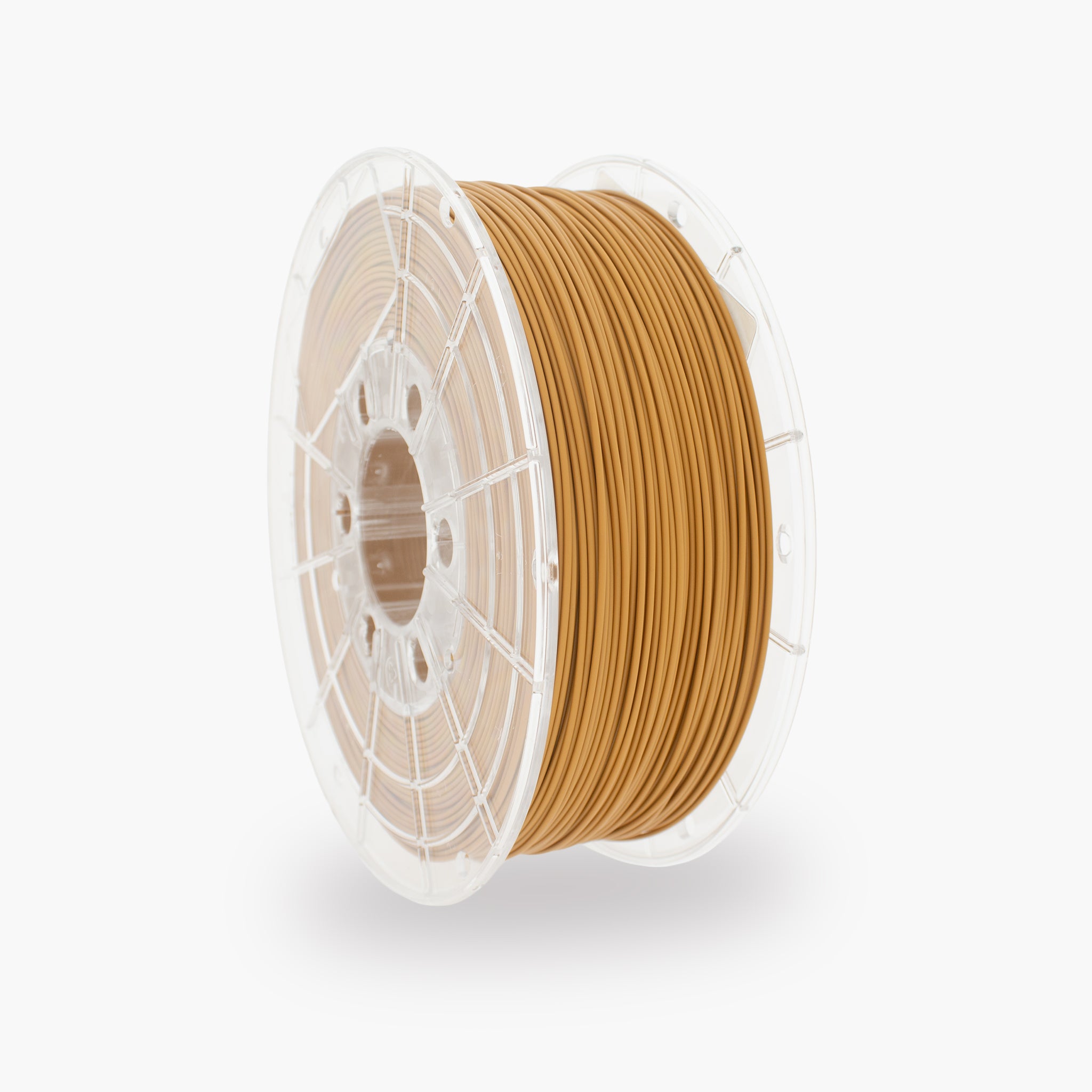
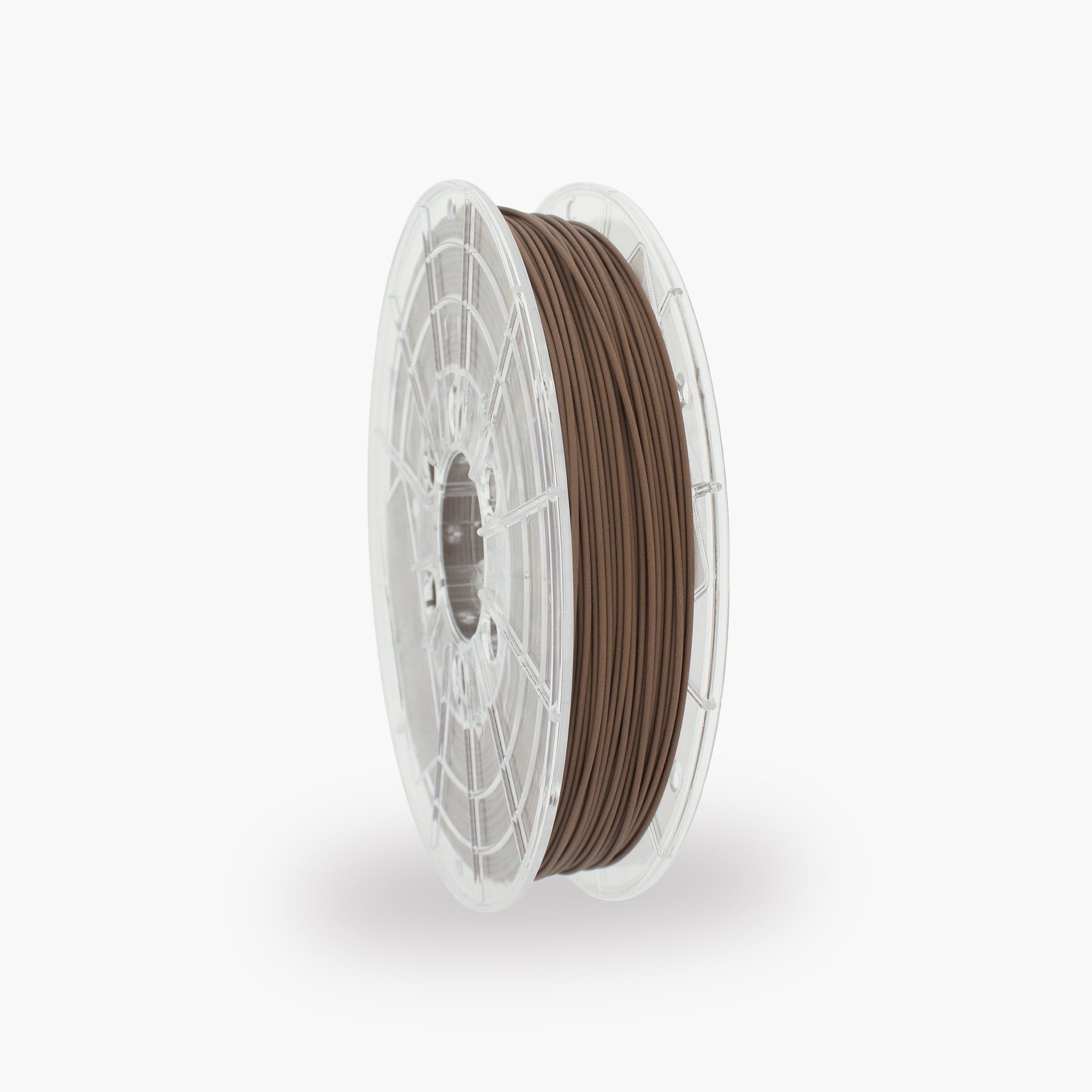
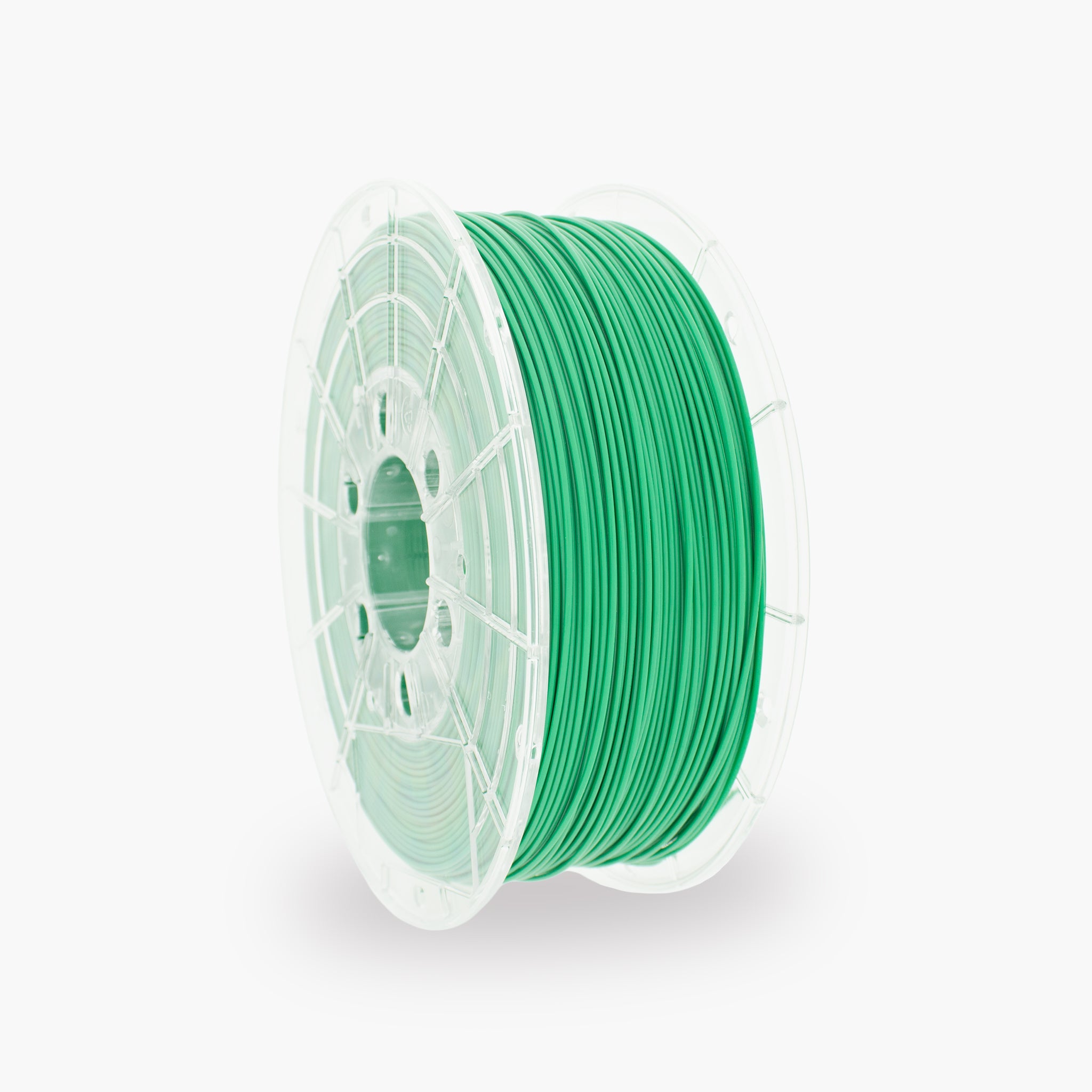

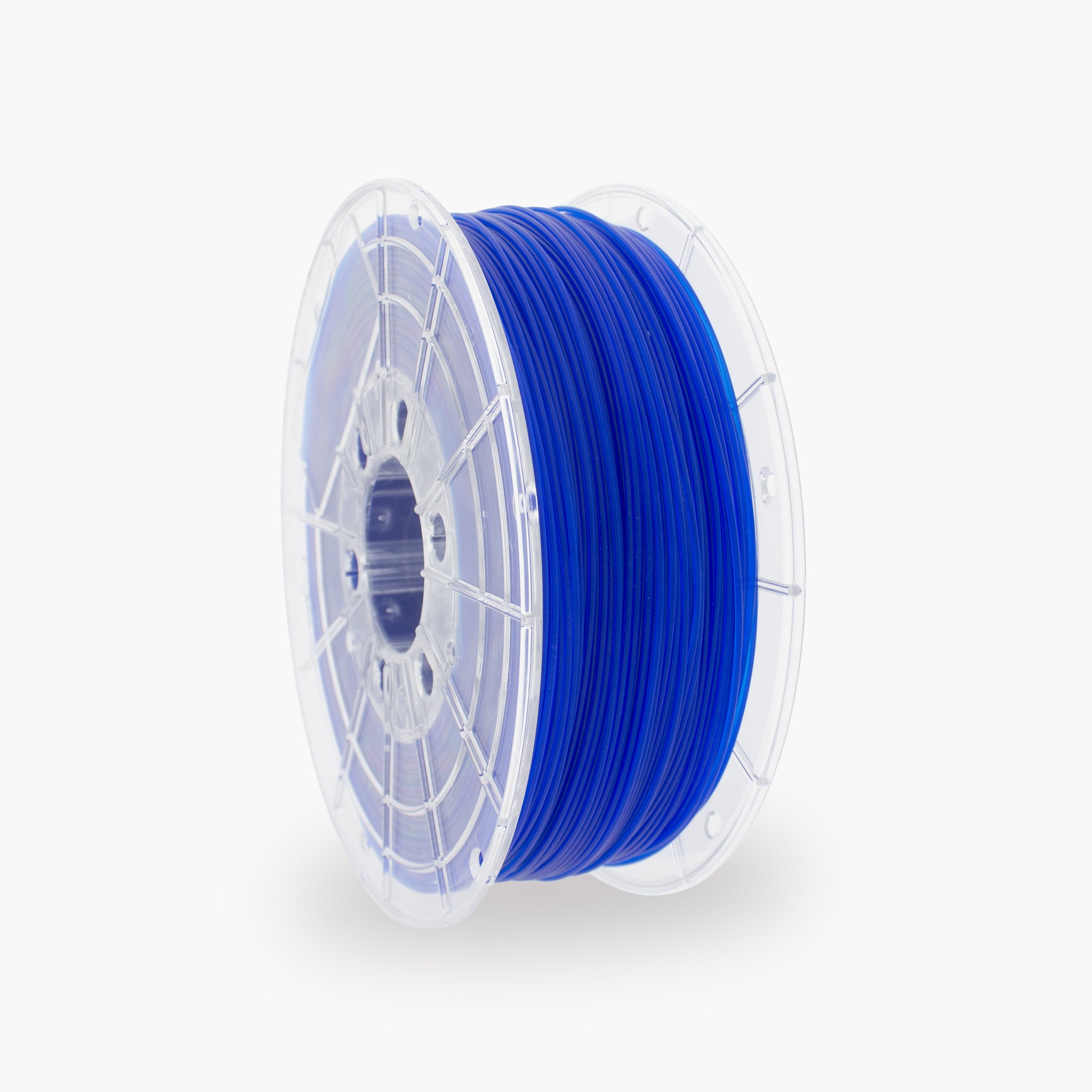
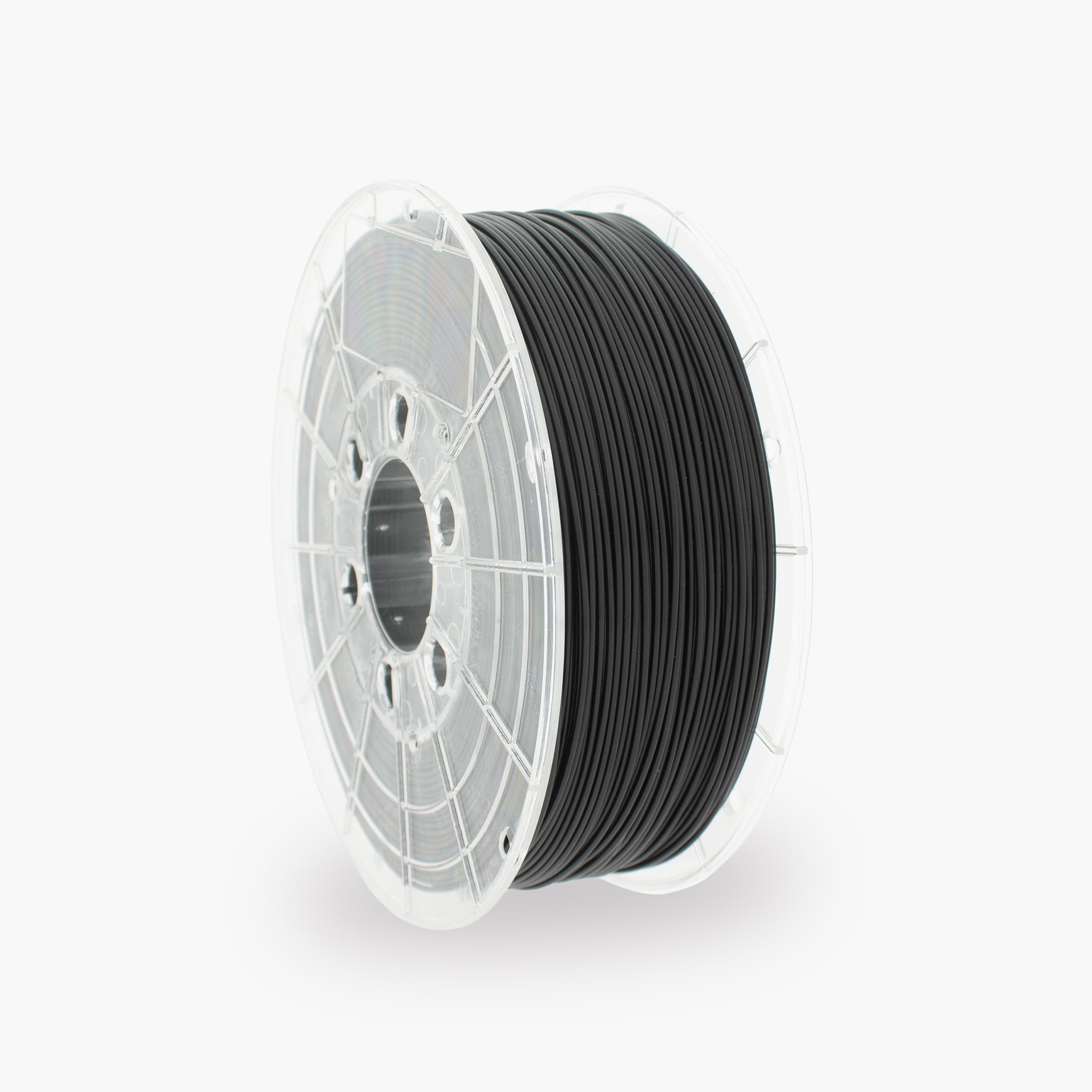
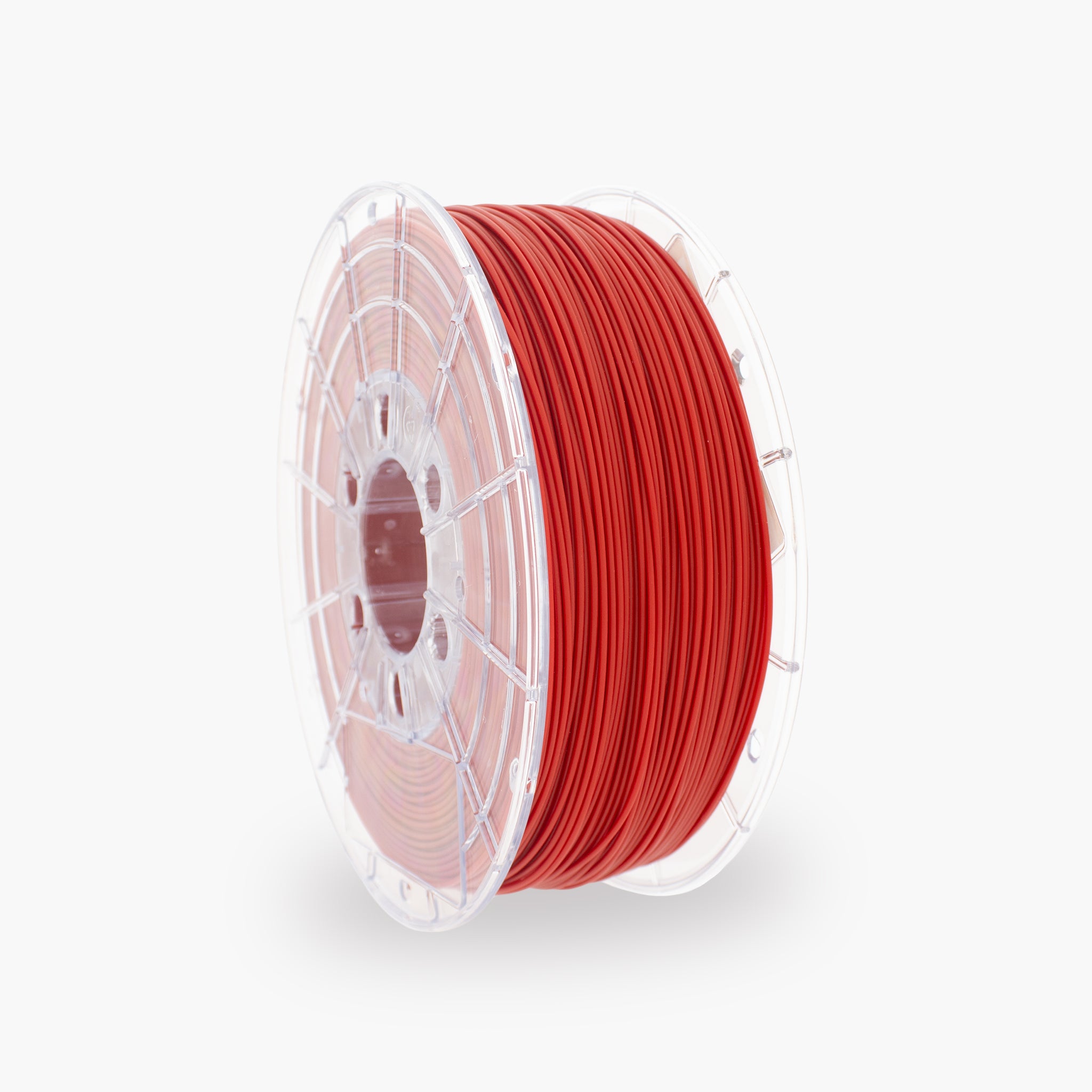
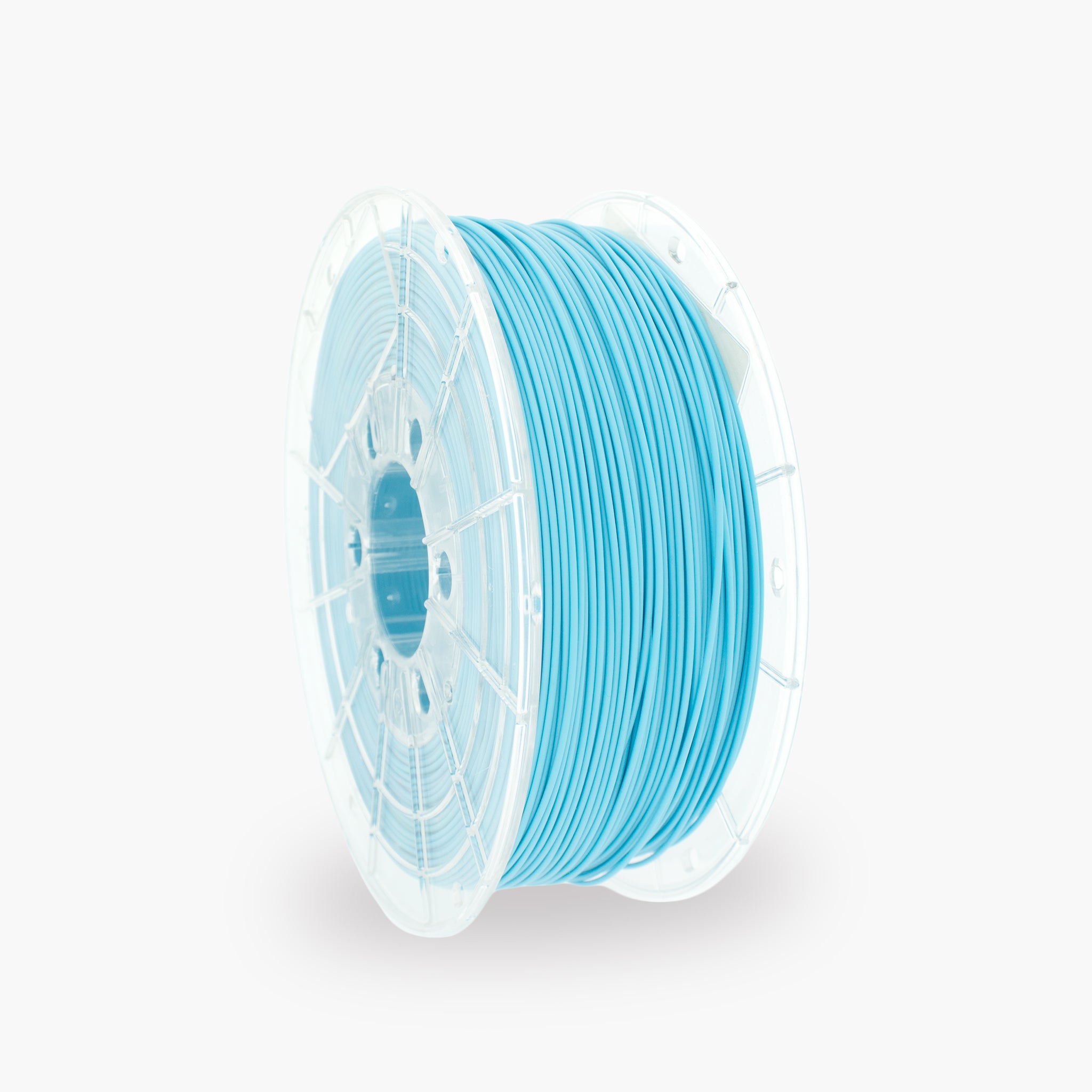

How do you print with TM3D TPU?
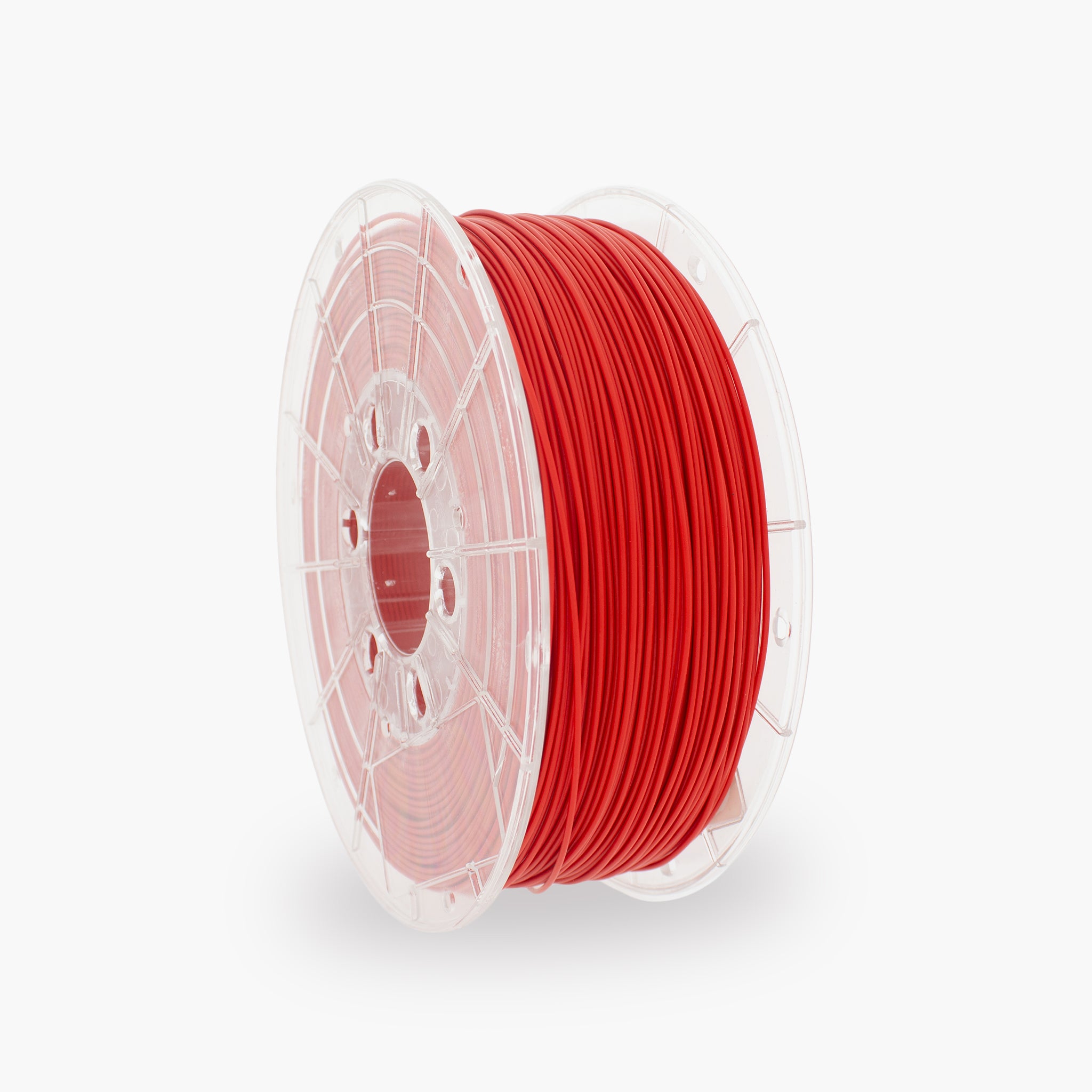
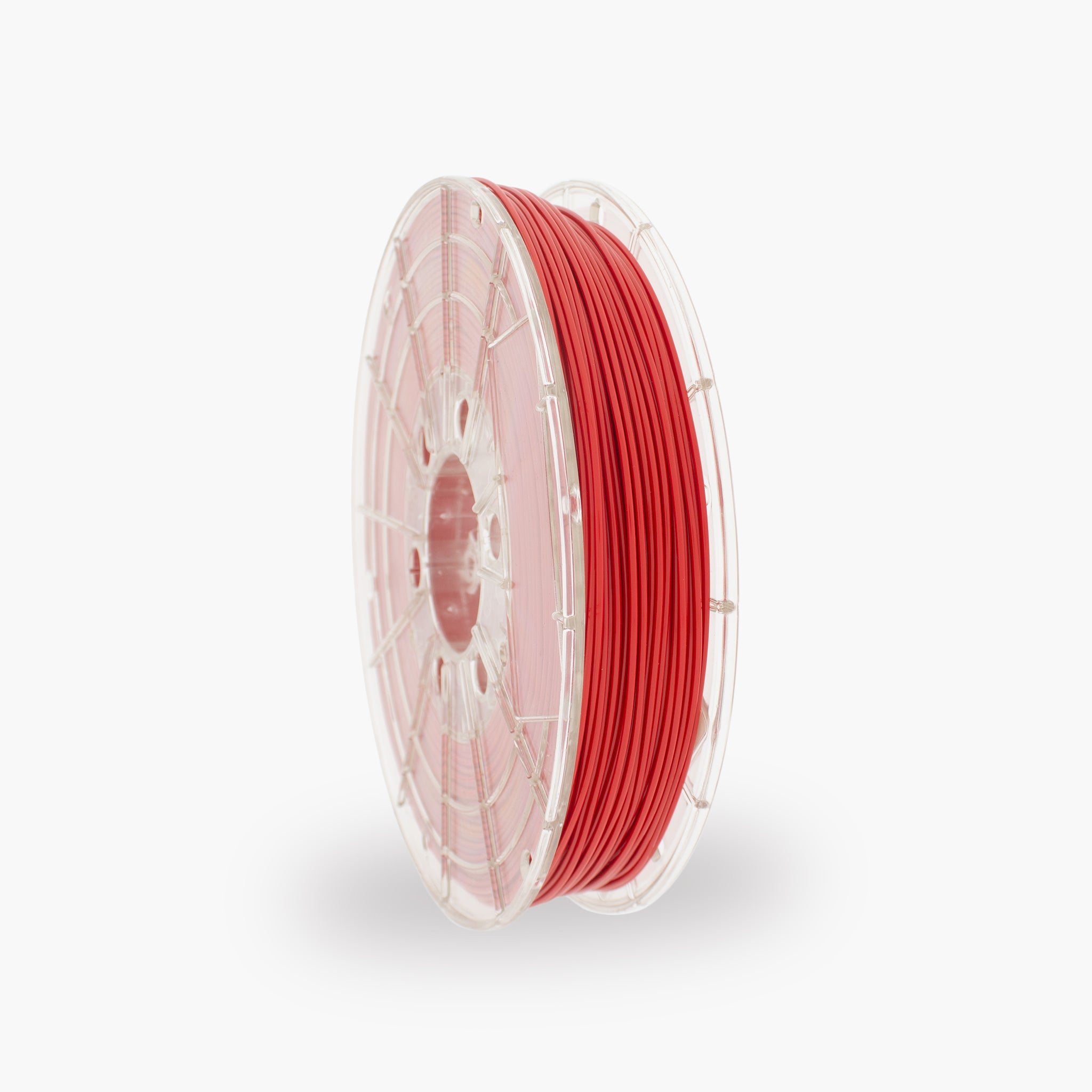
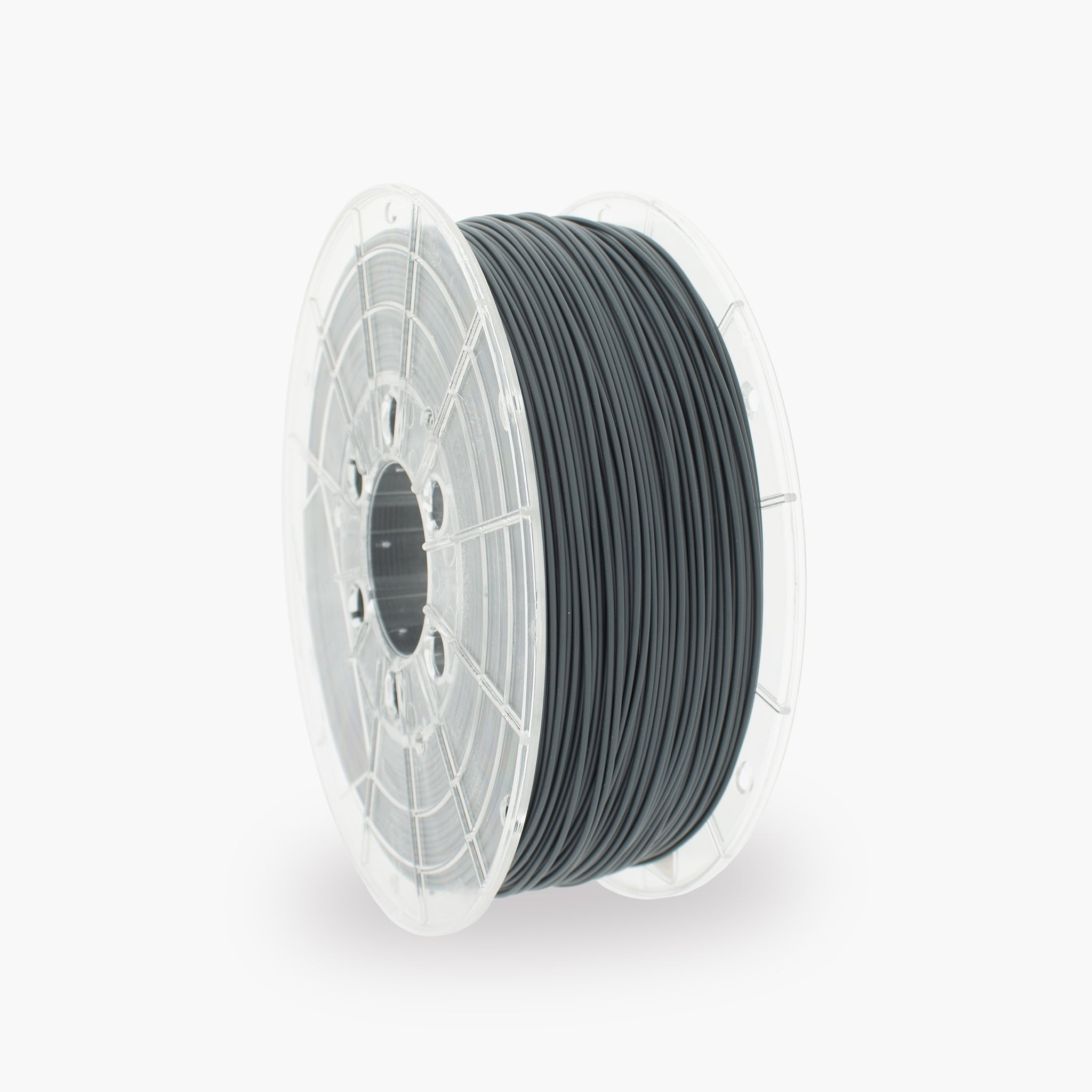
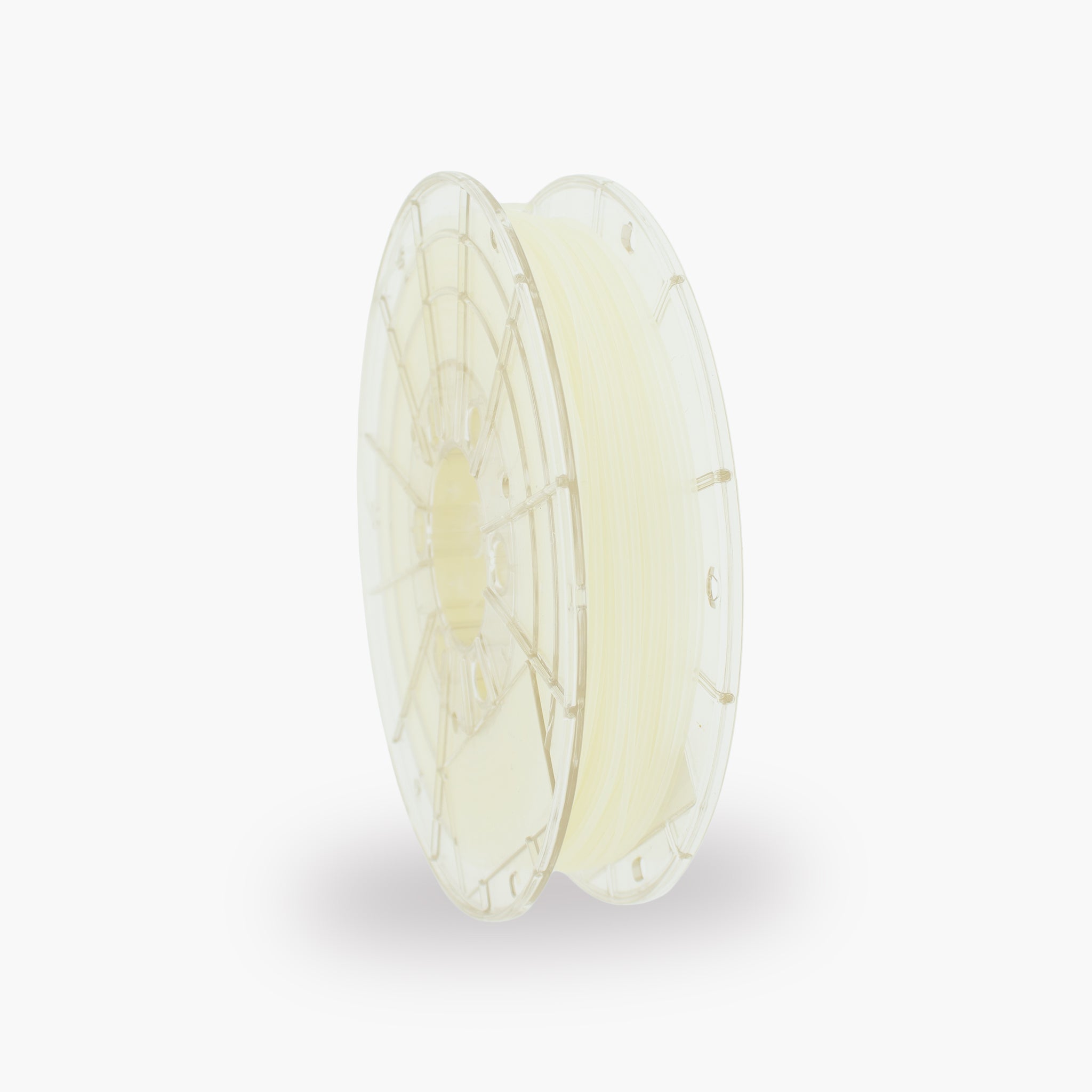
TPU is a flexible, wear-resistant filament for parts that need to flex, spring back or absorb shocks. In this guide, you will find recommended settings, tips for feeding flexible filament and solutions to common TPU printing problems.
The key TPU settings
Use these settings as a starting point. The ideal values depend, among other things, on the TPU hardness, the extruder and the distance between the drive gear and the nozzle.
What is TPU?
A flexible filament for strong, resilient and wear-resistant 3D prints.
TPU stands for thermoplastic polyurethane. The material combines flexibility with good wear resistance and impact resistance. Depending on the wall thickness, infill and geometry, a TPU print can bend easily or feel firm and rubber-like.
Benefits of TPU
- Flexible and resilient
- Good impact resistance
- Good wear resistance
- Less likely to tear than rigid plastics
- Suitable for parts that need to flex
- Good adhesion between print layers
Suitable applications
- Protective covers and bumpers
- Feet and vibration dampers
- Gaskets and flexible seals
- Flexible couplings
- Handles and non-slip components
- Wheels, tires and soft components
Recommended print settings for TPU
Start slowly and only increase the print speed once the filament is feeding reliably.
| Setting | Recommended value | Explanation |
|---|---|---|
| Nozzle temperature | 220–240 °C | Start around 230 °C and adjust the temperature based on layer adhesion, stringing and flow. |
| Print bed | 40–60 °C | A slightly heated print bed helps ensure a reliable first layer. |
| First layer | 15–25 mm/s | A slow first layer reduces pressure in the extruder and improves adhesion. |
| Other layers | 20–50 mm/s | First layer. A well-supported direct-drive extruder can generally print faster than a long Bowden system. |
| First-layer fan | 0% | Keep the fan off during the first layer for good adhesion. |
| Fan for other layers | 20–50% | Use limited cooling. More cooling can help with small parts, bridges and overhangs. |
| Retraction | As low as possible | Too much or too-fast retraction can deform the flexible filament in the extruder or cause it to jam. |
| Nozzle | From 0.4 mm | A 0.4 or 0.6 mm nozzle is a practical starting point for TPU. |
Which printer and extruder are suitable for TPU?
The shape and support of the filament path have a major influence on reliability.
Direct-drive extruder
With a direct-drive extruder, the extruder motor is located close to the nozzle. As a result, the filament only has to travel a short distance.
- Short filament path
- Lower risk of kinking
- Better control over extrusion
- Often allows higher TPU print speeds
- Retraction is easier to adjust
Bowden extruder
TPU can also be processed with a Bowden printer, but it usually requires a lower print speed and minimal retraction.
- Use a well-fitting Bowden tube
- Prevent free space around the filament
- Print at a lower speed
- Use very limited retraction
- Check that the filament does not kink in the extruder
Preparing the printer
Dry filament, a freely rotating spool, and a clean filament path are especially important when printing with TPU.
How to achieve a good first layer
TPU often adheres strongly to the print plate. The first layer should make good contact, but does not need to be pressed down excessively.
You can recognize a good first layer by:
- The print lines join together neatly
- The filament adheres across the entire surface
- Extrusion remains consistent
- The nozzle does not drag through the material
- TPU does not build up around the nozzle
Check the following in case of poor adhesion:
- Whether the print bed is clean and free of grease
- Whether the Z-offset is set correctly
- Whether the first layer is printed slowly enough
- Whether the print bed is sufficiently warm
- Whether the fan is turned off during the first layer
Useful slicer settings
Wall thickness and infill largely determine how flexible the printed part will be.
| Part | Starting value | Effect |
|---|---|---|
| Layer height | 0.20 mm | Good balance between print quality, reliability, and print speed with a 0.4 mm nozzle. |
| Wall lines | 2–4 | More wall lines make the part stronger and less flexible. |
| Top and bottom layers | 4–6 | Creates closed surfaces and increases strength. |
| Infill for a flexible part | 5–15% | Low infill makes the part easier to press and bend. |
| Infill for a sturdy part | 20–40% | More infill results in a stronger, less deformable part. |
| Print speed | 20–50 mm/s | A low, consistent speed prevents pressure buildup and kinking in the extruder. |
| Retraction speed | Low | A slow retraction reduces the risk of the TPU being stretched or deformed. |
| Brim | Only if necessary | TPU usually has good bed adhesion. Use a brim mainly for small contact areas. |
Adjusting the nozzle temperature
The best temperature depends on the print speed, extruder, nozzle, and desired layer adhesion.
Temperature may be too low
- Poor adhesion between the layers
- Rough or irregular extrusion
- The extruder clicks or skips steps
- The material has difficulty coming out of the nozzle
- The part cracks between the layers
Temperature may be too high
- A lot of stringing or thin strands
- Weak details and overhangs
- Material sticks to the nozzle
- Excessive oozing during travel moves
- Details blend together
Solving common TPU problems
Click a problem to view the possible causes and solutions.
The filament kinks or gets stuck in the extruder
- Reduce the print speed.
- Lower the retraction speed and retraction distance.
- Check that the filament path is fully supported.
- Reduce the tension of the extruder gear when the TPU is being crushed.
- Check whether the nozzle is partially clogged.
- Slightly increase the nozzle temperature.
The extruder clicks or skips steps
- Lower the print speed and volumetric material flow.
- Increase the nozzle temperature by approximately 5 °C.
- Check the nozzle for a partial clog.
- Check that the spool can unwind freely.
- Check that the filament does not kink in the feeder mechanism.
A lot of stringing occurs between parts
- First check whether the filament is dry.
- Lower the nozzle temperature in 5 °C increments.
- Calibrate retraction carefully.
- If necessary, increase the travel speed.
- Limit unnecessary travel moves across open spaces.
- Avoid too many retraction movements.
The material comes out of the nozzle irregularly
- Check whether the TPU has absorbed moisture.
- Reduce the print speed.
- Check the tension of the extruder gear.
- Check that the spool unwinds without resistance.
- Check the nozzle for contamination or clogging.
The print does not adhere to the print bed
- Clean and degrease the print bed thoroughly.
- Check the bed leveling and Z-offset.
- Reduce the first-layer speed.
- Use a print bed temperature of approximately 40–60 °C.
- Turn off the fan during the first layer.
- Use a brim for a small contact area.
The print adheres too strongly to the print bed
- Allow the print plate to cool completely.
- Use a suitable adhesive as a release layer.
- Increase the Z-offset slightly.
- Carefully detach a flexible print plate.
- Do not use excessive force on glass or a fragile coating.
The layers do not adhere well to each other
- Increase the nozzle temperature by approximately 5–10 °C.
- Reduce the print speed.
- Reduce the fan speed.
- Check whether the filament is dry.
- Check the flow and material feed.
The surface is rough or contains small holes
- Dry the filament before continuing to print.
- Check whether the material crackles during printing.
- Reduce the print speed.
- Calibrate the flow or extrusion multiplier.
- Check the nozzle for contamination.
Overhangs and bridges are sagging
- Temporarily increase the fan speed.
- Slightly lower the nozzle temperature.
- Reduce the speed of bridges and overhangs.
- Use support for heavy overhangs.
- If necessary, reduce the layer height.
The part is less flexible than expected
- Reduce the number of wall lines.
- Reduce the infill percentage.
- Use a more flexible infill pattern.
- Make the walls or the entire part thinner.
- Check that the selected TPU hardness is suitable for the application.
Storing and drying TPU
TPU can absorb moisture from the air relatively easily. Dry filament is important for a smooth surface and reliable extrusion.
Storing TPU properly
- Store the spool in a sealed bag or dry box
- Use sufficient desiccant
- Store the filament in a dry place
- Do not leave the spool open unnecessarily long
- Reseal the packaging immediately after use
Signs of damp TPU
- Crackling or popping sounds
- A lot of stringing between parts
- Small holes in the print surface
- A rough or foamy extrusion
- An irregular material flow
Material properties of TM3D TPU
The data below provides a general overview of the material.
| Material | TPU |
|---|---|
| Filament diameter | 1.75 mm or 2.85 mm, depending on the selected version |
| Property | Flexible, resilient, and wear-resistant |
| Recommended nozzle temperature | 220–240 °C |
| Recommended print bed temperature | 40–60 °C |
| Recommended print speed | 20–50 mm/s |
| Enclosed print chamber | Not necessary |
| Suitable nozzle | Standard brass nozzle for normal, unfilled TPU |
| Use | Flexible parts, protective covers, dampers, gaskets, handles, and wear-resistant components |
The exact properties and settings may vary depending on hardness, color, printer, and test method. For technical applications, always consult the current technical data sheet.
Safe printing with TPU
Always ensure a safe and well-organized workspace during 3D printing.
- Ensure adequate ventilation in the printing area.
- Do not touch the hot nozzle or heated print bed.
- Do not leave a printer running unattended unnecessarily.
- Keep the printer away from flammable materials.
- Do not automatically use printed parts for food contact, medical applications, or safety-critical applications.
- Consult the safety data sheet for additional product information.
Frequently asked questions about TPU
Can I print TM3D TPU with a standard TPU profile?
Yes. First choose your printer's standard or Generic TPU profile. Start with a low print speed and check that the filament is fed through the extruder without buckling.
Do I need a direct-drive extruder?
A direct-drive extruder is recommended because the filament path is shorter and better supported. TPU can also be processed with some Bowden printers, but usually at a lower print speed and with less retraction.
Can TPU pass through an automatic material system?
That depends on the system and the hardness of the TPU. Some automatic material systems have long filament paths or multiple drive gears, which can cause flexible filament to jam. When in doubt, feed TPU directly from the spool to the extruder.
Why do you print TPU more slowly than PLA or PETG?
TPU can bend and compress under pressure. If the print speed is too high, the filament can buckle in the extruder, causing material flow to stop or become irregular.
How do I make a TPU part more flexible?
Use fewer wall lines, a lower infill percentage, and a flexible infill pattern. The thickness and shape of the design also have a major impact on the final flexibility.
Why does TPU cause so much stringing?
TPU is printed at a relatively high temperature and can absorb moisture. Dry the filament first, then carefully adjust the temperature, travel speed, and retraction.
Which nozzle can I use?
For normal, unfilled TPU, a standard 0.4 mm brass nozzle is suitable. A 0.6 mm nozzle can make material flow easier and more reliable.
Do I need an enclosed printer?
No. TPU can generally be processed well with an open printer. However, avoid strong drafts directly over the print bed and the printed part.
Ready to print with TPU?
Discover the TM3D TPU filament range, produced in the Netherlands and suitable for flexible, strong, and wear-resistant 3D prints.
View all TPU filaments